
1. Defrag regularly
The faster your hard drive does its work – less demand you are going to put on the hard drive and your battery. Make your hard drive as efficient as possible by defragging it regularly. gamit na lang po kau ng AVG TUNE-UP, TUNE-UP UTILITIES , ADVANCE SYSTEM CARE kasi mga package na po yan eh

2. Darken your screen
Your laptop screen is found to be the most power-hungry component of your laptop. Your laptop screen needs high amount of battery power to maintain it’s clear and luminous display. To preserve this power you can adjust it’s brightness to a low level.
3. Cut down on programs running in the background.
Itunes, Desktop Search, etc. All these add to the CPU load and cut down battery life. Shut down everything that isn’t crucial when you’re on battery.

4. Cut down external devices
USB devices (including your mouse) & WiFi drain down your laptop battery. Remove or shut them down when not in use. It goes without saying that charging other devices (like your iPod) with your laptop when on battery is a surefire way of quickly wiping out the charge on your laptop battery.

5. Disable features
Windows Vista has got new features, but most of them proves to be needless by a ordinary user or even to some expert users. One good example is the Windows Aero, switching it off not only it will help you save a small amount of power but it will also make your laptop more proficient.

6. Add more RAM
This will allow you to process more with the memory your laptop has, rather than relying on virtual memory. Virtual memory results in hard drive use, and is much less power efficient. Note that adding more RAM will consume more energy, so this is most applicable if you do need to run memory intensive programs which actually require heavy usage of virtual memory.

7. Hibernate not standby
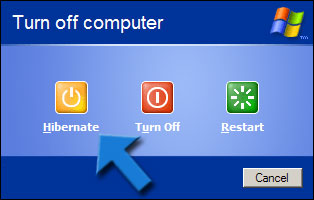
Although placing a laptop in standby mode saves some power and you can instantly resume where you left off, it doesn’t save anywhere as much power as the hibernate function does. Hibernating a PC will actually save your PC’s state as it is, and completely shut itself down.
8. Take care of your battery
Exercise the Battery. Do not leave a charged battery dormant for long periods of time. Once charged, you should at least use the battery at least once every two to three weeks. Also, do not let a Li-On battery completely discharge. (Discharing is only for older batteries with memory effects) pag 100% na ang battery charging pwede mo na syang tanggalin at hayaan na alng ang adaptor para sa power supply
9.Visit Power Options
Get familiar with power management through the “˜Power Options’ applet in the Control Panel. Both XP and Vista come with advanced power management features which shut off components like the monitor and/or the hard drive after specified intervals. This again depends on the chosen “˜Power Schemes’ (for XP) in the same applet. For instance in XP, “˜Max Battery’ under Power Schemes can be selected for maximum battery optimization.
10.Avoid the memory effect
A problem more for the older Ni-MH batteries than for Li-Ion batteries on which most modern laptops run. Memory effect relates to the loss of battery charge when they are repeatedly recharged after being only partially discharged. It can be prevented by discharging the battery fully and then completely recharging it. Li-Ion batteries on the other hand have no problems with partial discharges and re-charges and complete discharge is never recommended for this type.
The faster your hard drive does its work – less demand you are going to put on the hard drive and your battery. Make your hard drive as efficient as possible by defragging it regularly. gamit na lang po kau ng AVG TUNE-UP, TUNE-UP UTILITIES , ADVANCE SYSTEM CARE kasi mga package na po yan eh
2. Darken your screen
Your laptop screen is found to be the most power-hungry component of your laptop. Your laptop screen needs high amount of battery power to maintain it’s clear and luminous display. To preserve this power you can adjust it’s brightness to a low level.
3. Cut down on programs running in the background.
Itunes, Desktop Search, etc. All these add to the CPU load and cut down battery life. Shut down everything that isn’t crucial when you’re on battery.
4. Cut down external devices
USB devices (including your mouse) & WiFi drain down your laptop battery. Remove or shut them down when not in use. It goes without saying that charging other devices (like your iPod) with your laptop when on battery is a surefire way of quickly wiping out the charge on your laptop battery.
5. Disable features
Windows Vista has got new features, but most of them proves to be needless by a ordinary user or even to some expert users. One good example is the Windows Aero, switching it off not only it will help you save a small amount of power but it will also make your laptop more proficient.
6. Add more RAM
This will allow you to process more with the memory your laptop has, rather than relying on virtual memory. Virtual memory results in hard drive use, and is much less power efficient. Note that adding more RAM will consume more energy, so this is most applicable if you do need to run memory intensive programs which actually require heavy usage of virtual memory.
7. Hibernate not standby
Although placing a laptop in standby mode saves some power and you can instantly resume where you left off, it doesn’t save anywhere as much power as the hibernate function does. Hibernating a PC will actually save your PC’s state as it is, and completely shut itself down.
8. Take care of your battery
Exercise the Battery. Do not leave a charged battery dormant for long periods of time. Once charged, you should at least use the battery at least once every two to three weeks. Also, do not let a Li-On battery completely discharge. (Discharing is only for older batteries with memory effects) pag 100% na ang battery charging pwede mo na syang tanggalin at hayaan na alng ang adaptor para sa power supply
9.Visit Power Options
Get familiar with power management through the “˜Power Options’ applet in the Control Panel. Both XP and Vista come with advanced power management features which shut off components like the monitor and/or the hard drive after specified intervals. This again depends on the chosen “˜Power Schemes’ (for XP) in the same applet. For instance in XP, “˜Max Battery’ under Power Schemes can be selected for maximum battery optimization.
10.Avoid the memory effect
A problem more for the older Ni-MH batteries than for Li-Ion batteries on which most modern laptops run. Memory effect relates to the loss of battery charge when they are repeatedly recharged after being only partially discharged. It can be prevented by discharging the battery fully and then completely recharging it. Li-Ion batteries on the other hand have no problems with partial discharges and re-charges and complete discharge is never recommended for this type.

No comments:
Post a Comment